




Most product managers using AI in 2026 live across three or four browser tabs. Claude.ai in one window. ChatGPT in another. Gemini somewhere in the background. You copy context between them, re-paste your product one-pager at the start of each session, and lose the thread every time you switch.
The problem isn't the tools. It's the setup. Every agent works on its own, reads different context, and forgets everything the moment you close the tab. The fix is simple: bring all three agents into one application, point them at your product repository, and let each one read the same source of truth on every run.
What tab-switching between AI tools costs you
When you work across many AI chat interfaces, you re-explain your product on every session. The brief you gave Claude yesterday doesn't exist in ChatGPT. That setup might take two minutes. Across thirty sessions a week, it's an hour of overhead that produces no output.
There's a better architecture. One IDE, Cursor, acts as the hub. Claude Code, Codex, and Gemini CLI each run as panels inside it. Your Git repository sits at the center. Each agent reads the same structured Markdown files from the same repo on every session.
As of 2026, AGENTS.md is read natively by Claude Code, OpenAI Codex CLI, Cursor, Gemini CLI, GitHub Copilot, Windsurf, and a dozen more tools. Every one of them reads from Git. None reads natively from Notion or a chat interface.
Step 1: Open your product repository in Cursor
Cursor is an agentic IDE built on VS Code. Download it from cursor.com, install it, and sign in; a free account is enough to follow this guide.
To bring in your repo, open the command palette with Cmd+Shift+P (Mac) or Ctrl+Shift+P (Windows), type Git: Clone, and paste the HTTPS URL from your repository. If the repo is already on your machine, use File, then Open Folder instead. Run git status in the built-in terminal to confirm Git is wired.
Step 2: Install three plugins
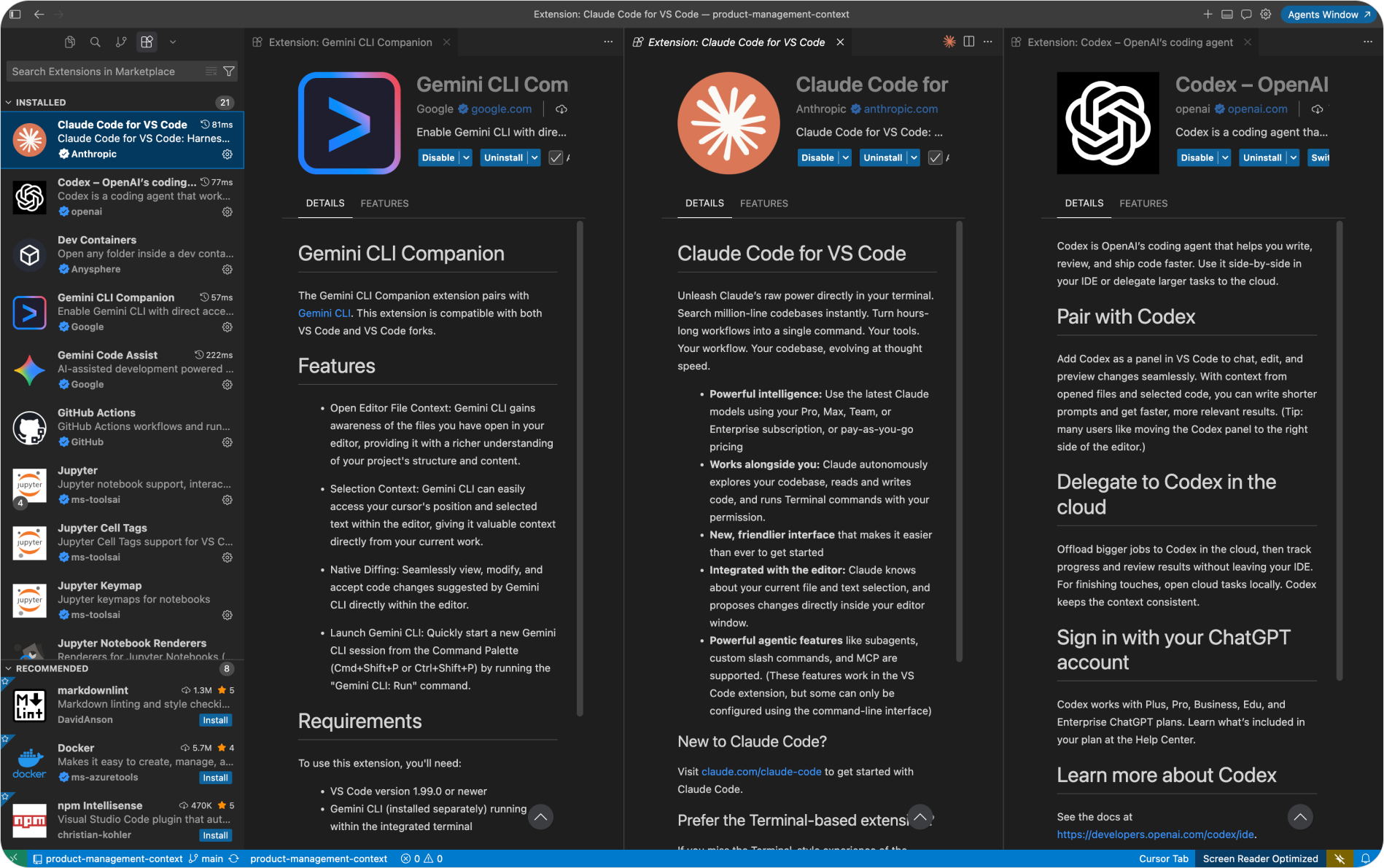
Open the Extensions panel with Cmd+Shift+X and install each of these:
- Claude Code (Anthropic): puts Claude's long-context reasoning inside Cursor as a sidebar panel. Best for document-heavy PM work like drafting PRDs, synthesizing research, and writing OKRs. It reads your repo and commits outputs straight back to Git.
- Codex (OpenAI): puts OpenAI's coding agent in the same window with full session history. For PMs, that means data pipelines, token-counting scripts, CSV processing, and lightweight tools built on product data.
- Gemini CLI Companion (Google): gives inline suggestions, but the better way to run Gemini is in Cursor's built-in terminal for longer research sessions. Its 1M token context window and free tier give you a cost advantage on large-document work.
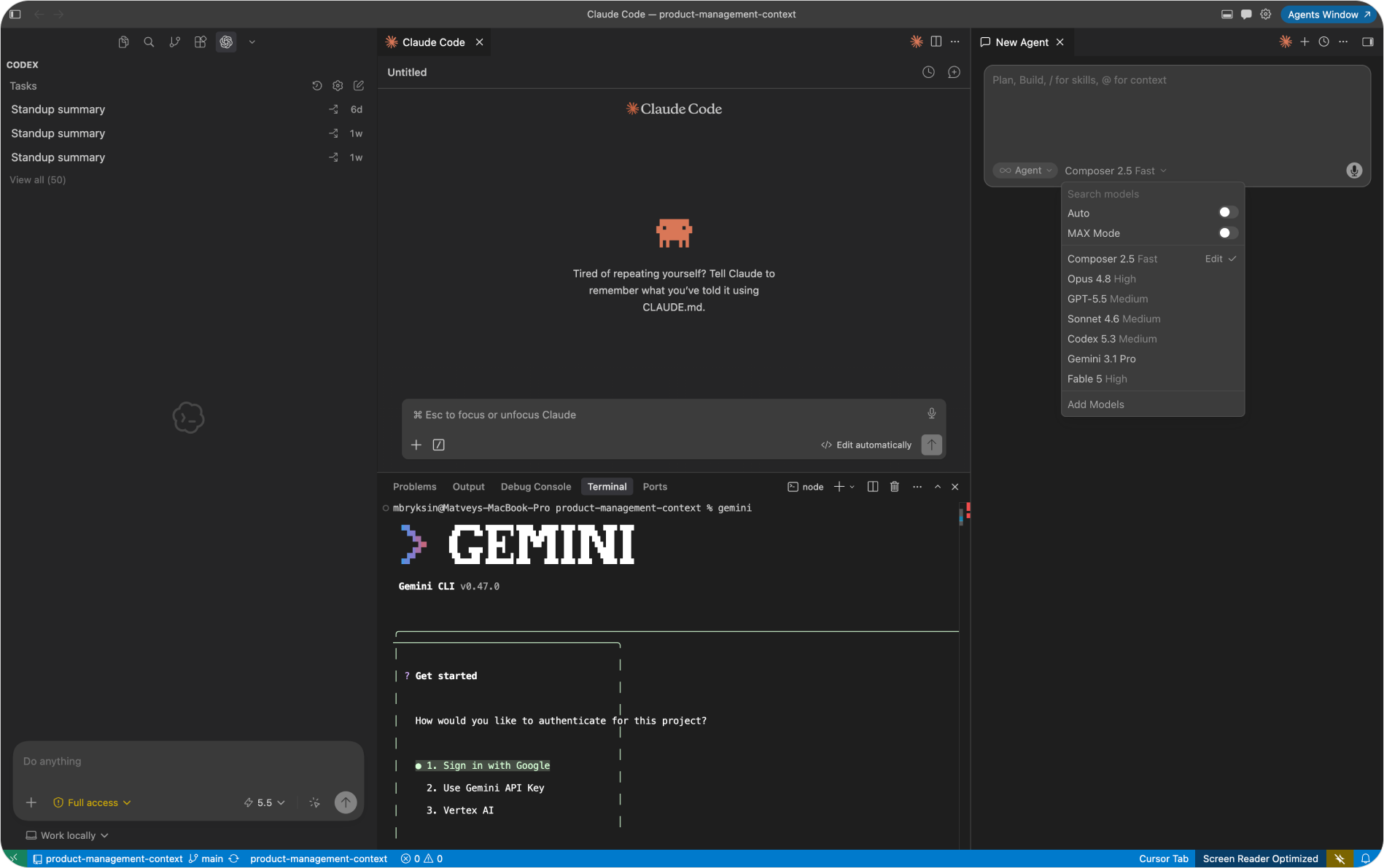
A practical layout: Cursor's native chat at the top, Claude Code and Codex side by side beneath it, and the terminal at the bottom for Gemini CLI.
Step 3: Wire each agent to your project context
Plugins give you access to the agents. What makes them useful is giving each agent context so it starts every session already knowing your product.
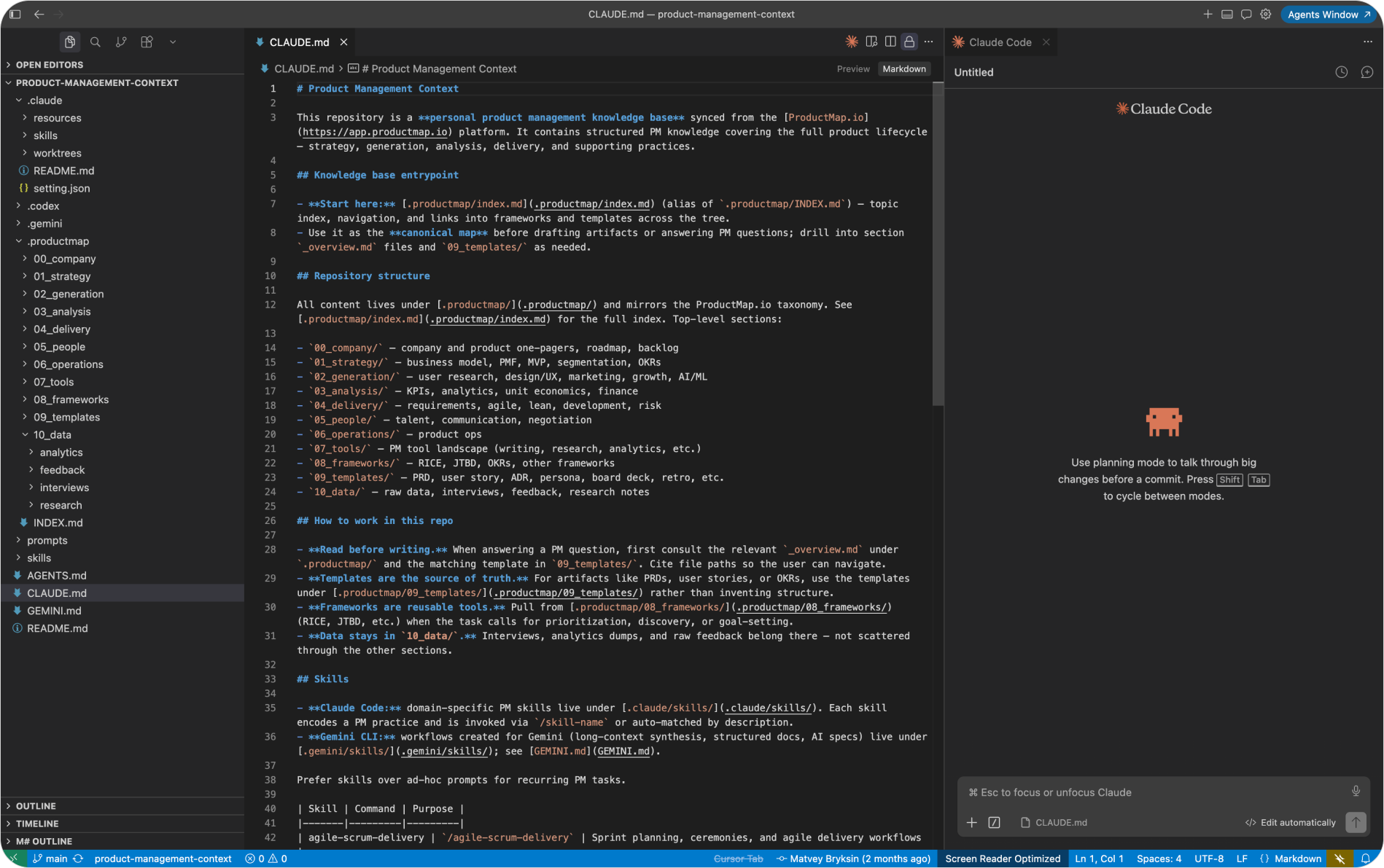
You do this through two files at the root of your repository. Claude Code reads CLAUDE.md at the start of every session. Codex and Gemini CLI both read AGENTS.md. Both files cover the same ground with minor tool-specific adjustments.
CLAUDE.md should carry three sections. A Product section pointing to your README for the one-pager. A How Claude should work section telling it to read topic folders before answering, produce outputs in plain Markdown so they can be committed back, and apply the matching skill from .claude/skills/ when drafting artifacts. And a Conventions section naming which domain folders artifacts belong in, plus a rule that credentials never get committed.
AGENTS.md covers the same ground for Codex and Gemini: point to the README, tell agents not to guess at conventions, set Python with minimal dependencies as the default for scripts, require any script touching external APIs to read credentials from environment variables, and confirm which domain folder outputs land in.
Once these files are committed, every Claude Code, Codex, and Gemini CLI session that runs against this repo starts with your product context loaded. You never paste the one-pager again.
This is the single highest-leverage change you can make. CLAUDE.md and AGENTS.md decide whether your agents start smart or start from zero. A well-written context file turns a generic model into a product-aware assistant.
Step 4: Add skills and slash commands for PM tasks
Context files tell agents about your product. Skills tell them how to do specific PM work. A skill is a Markdown prompt file that encodes a full task workflow: the goal, the steps, the output format, and the quality bar. You invoke it with a single slash command.
In Claude Code, skills live in .claude/skills/, with one subfolder per task type holding a SKILL.md file. A few that pay off quickly for PMs: a PRD requirements skill that drafts PRDs from feature briefs, a LinkedIn post skill that turns notes into posts, an interview plan skill that builds customer discovery guides, and a competitor brief skill that produces competitive landscape reports.
The skill file is a structured Markdown document with sections for objective, instructions, output format, and examples. Once written, you invoke it inside Cursor's Claude Code panel with a slash command like /prd-requirements [brief], and the agent picks up the full workflow without you re-explaining the process.
For Codex, create a .codex/prompts/ folder and store task-specific prompts there. For Gemini CLI in the terminal, invoke it with the gemini command and pass your task as a natural-language prompt. Gemini's 1M token window earns its keep on sessions involving full research documents, transcripts, or large data exports.
Step 5: Pick the right model for each task
Cursor lets you switch models from the selector at the top of every chat panel. The default Auto mode picks a model based on task type; turning it off and choosing manually gives you cost control.
A practical routing guide for PM work:
- Complex PRDs and research synthesis: Claude Opus or Sonnet through Claude Code. Long-context reasoning for multi-step, document-heavy work.
- Scripts, data pipelines, and CSV processing: Codex. Strong code generation and automation.
- Large-context analysis and long documents: Gemini 2.5 Pro on the free tier. 1M context window, Google web search, no cost.
- Quick rewrites and short tasks: Claude Haiku or GPT-4o mini. Fast, cheap, and enough for simple transformations.
- General Cursor chat and inline edits: Composer 2.5, Cursor's own model, tuned for code edits inside the IDE.
The cost gap between frontier and fast models is real. Claude Opus runs roughly 15 times more per token than Claude Haiku. For a quick task like reformatting a meeting note, you don't need Opus. For synthesizing twelve customer interviews into a research brief, you do.
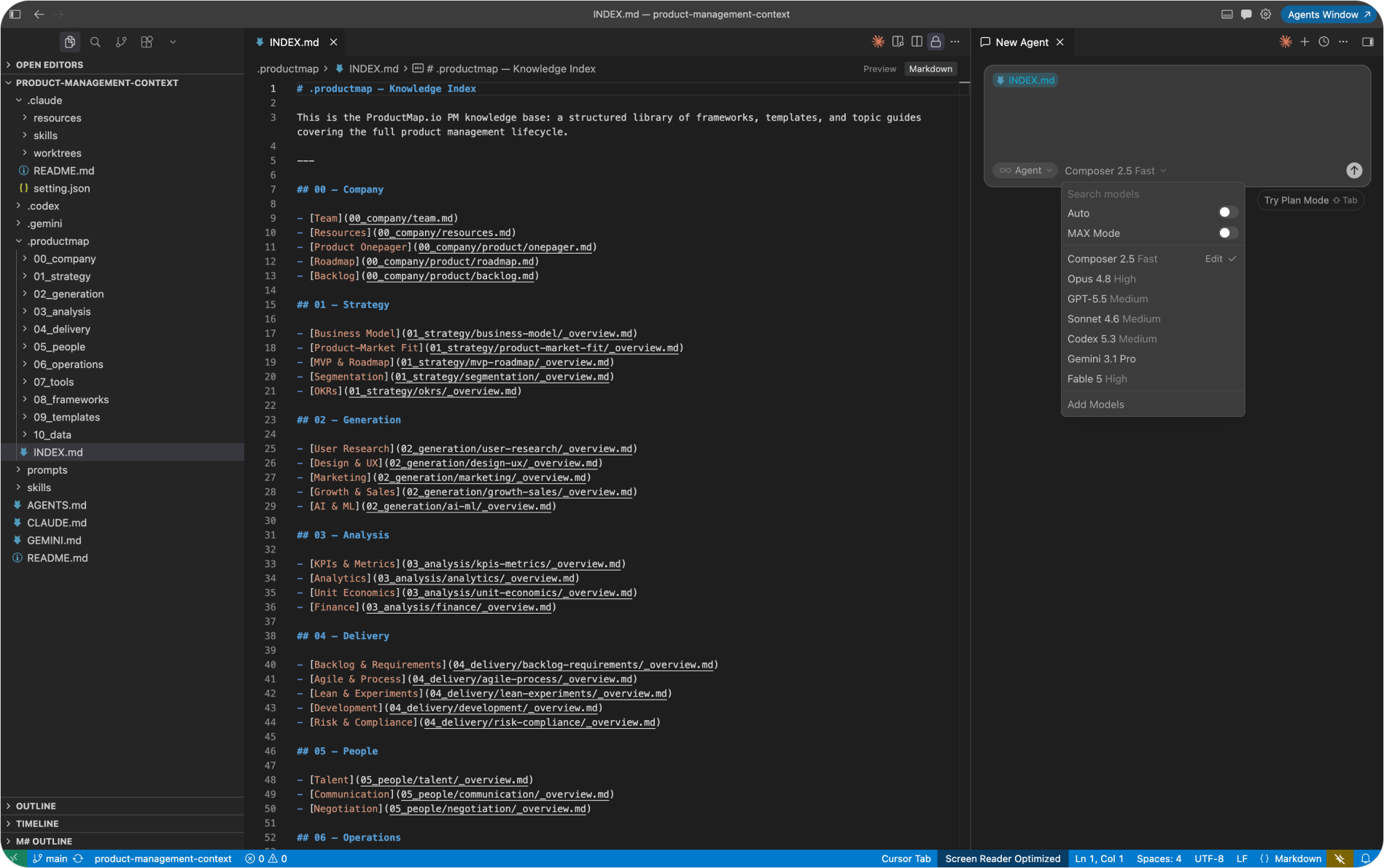
Gemini's free tier deserves attention. It runs on a Google account with no API costs up to daily limits. Most PMs on this setup use Gemini for research and analysis, Claude Code for drafting and reasoning, and Codex for scripts.
A PM running ten agentic sessions per day on Claude Opus alone spends roughly 3 to 5 times more per month than one routing quick tasks to Haiku and complex ones to Opus. On quick tasks, the output quality is indistinguishable.
What to do when everything is running
Once Cursor is open, the three plugins are installed, your context files are committed, and your first skills are in place, the workflow is:
- Open the repo in Cursor.
- Choose the agent: Claude Code panel for document work, Codex panel for scripts, terminal for Gemini research.
- Select the model on purpose: frontier for complex tasks, fast for quick ones.
- Run the task. The agent reads your context files and applies the right skill automatically.
- Commit the output back to Git from Cursor's source control panel.
All outputs stay inside the repo. Cursor's Git integration means you review the diff, add a note, and commit in two clicks.
For the mechanics behind what each agent reads and how to structure its instructions, the context engineering guide and prompt engineering guide on Product Map go deeper.
The multi-tab setup most PMs start with is a phase, not a destination. One window, one repo, three agents reading the same context. That's the setup that compounds.